 October 25, 2026
A Halloween Reading Night for Two
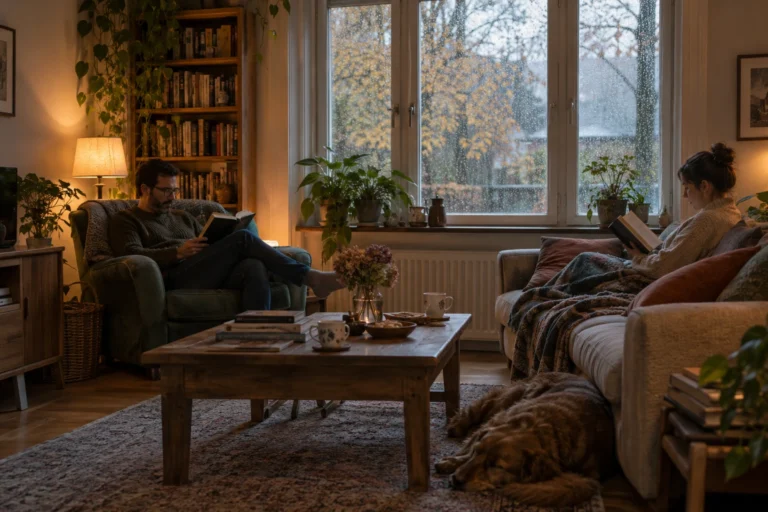
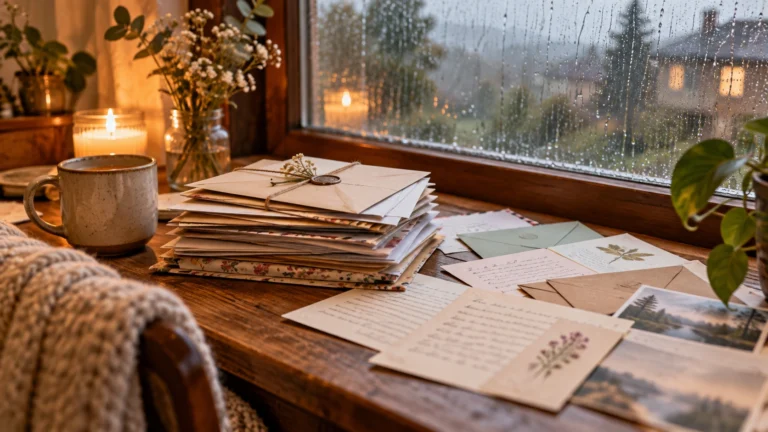
A reading night for two sounds like a good Halloween plan to me because it leaves room for both company and quiet.…
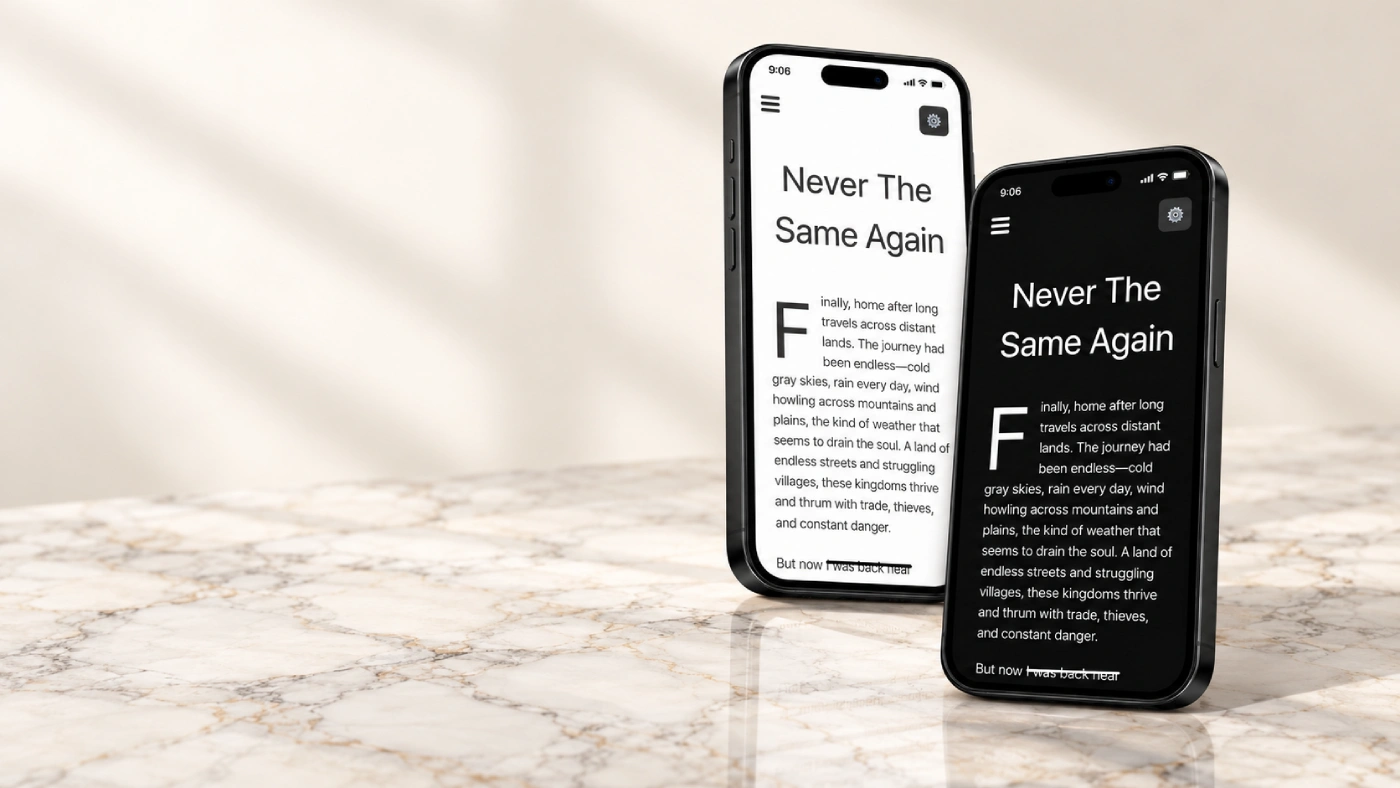
Reading on a screen should not feel uncomfortable simply because a website decided there is only one correct way for a page to look. Some readers prefer bright pages during the day, some prefer darker backgrounds at night, and others want something warmer that feels closer to a printed book. Because of that, I have been expanding the appearance options inside the Valentine Kingdom reader instead of forcing everyone to use the same style.
The reader now includes different visual combinations, including clean black and white options, darker reading modes and warmer cream and gold styles. The story itself does not change at all. These settings only change the environment around the text so readers can choose something that feels comfortable on their screen.
I wanted the options to fit Valentine Kingdom without turning the reader into something decorative or complicated. Gold and cream can give it a warmer, more classical feeling, while black and white keeps everything extremely clean and simple. Darker styles are useful for reading later in the evening when a bright white page can become tiring. The idea is not to add dozens of themes. It is simply to give readers a few useful choices that actually make a difference.
I am still trying to keep the reader as minimal as possible. Features are useful only when they make reading easier, so I do not want to fill the screen with controls, menus and buttons that distract from the chapter itself. Choose the appearance you like, adjust the reading settings and continue with the story.
There will be more improvements over time, especially as I continue testing the reader across phones, tablets and desktop screens. The goal remains the same: when someone starts reading, the website should get out of the way. The reader should feel quiet, comfortable and focused on the book rather than reminding you constantly that you are using a website.
October 25, 2026A reading night for two sounds like a good Halloween plan to me because it leaves room for both company and quiet.…
 October 25, 2026
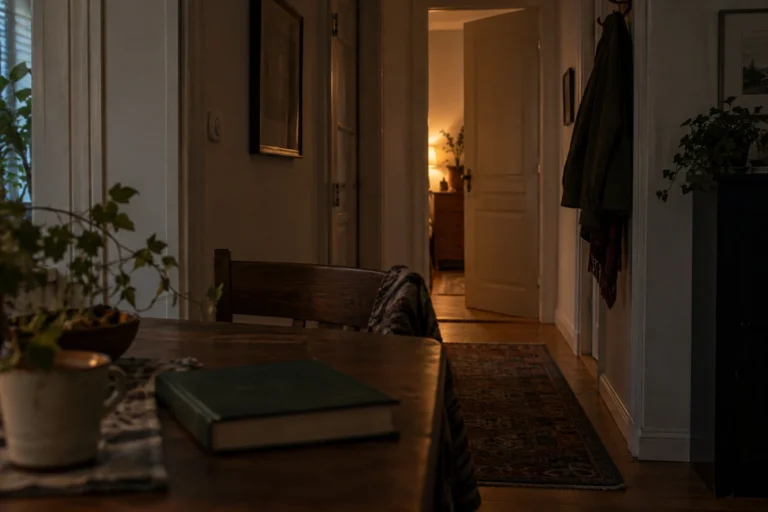
An ordinary room can become surprisingly unfamiliar after dark. During the day, I can see its edges, its furniture, and whatever is…
 October 25, 2026
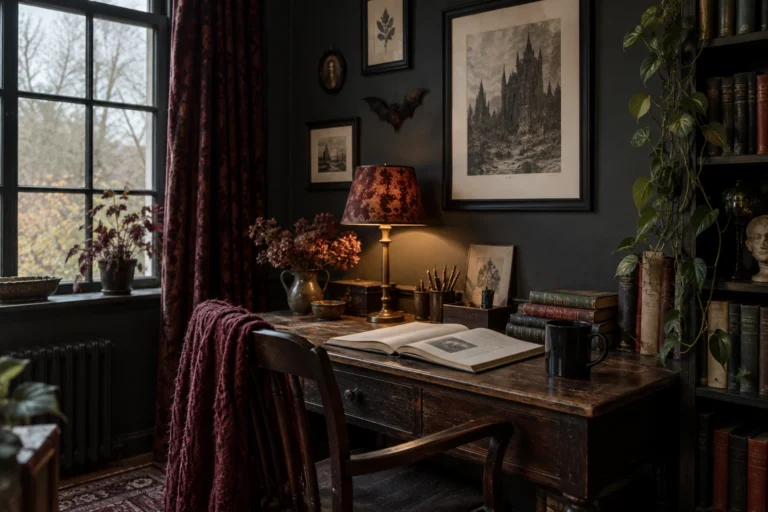
When I imagine a gothic reading corner, I think about somewhere I would genuinely want to spend an evening. A comfortable chair,…
 October 25, 2026
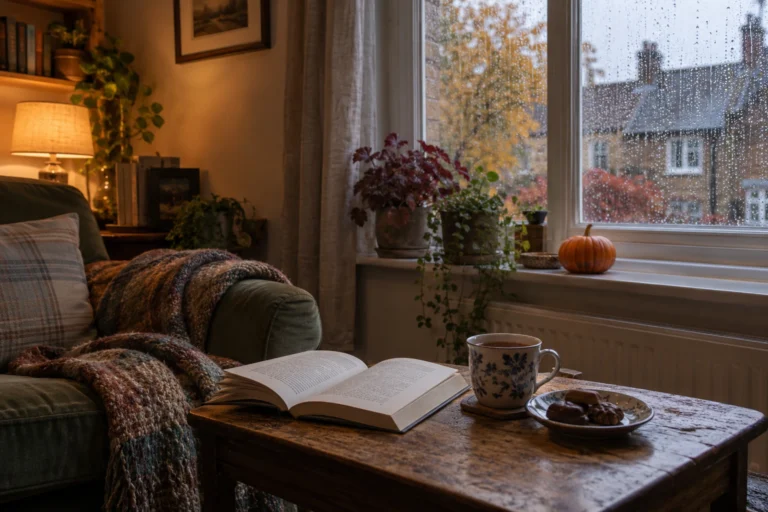
There is a version of Halloween I like that involves very little preparation. A comfortable room, something good to read, a warm…
 October 20, 2026
One of the first things new authors encounter when preparing a book for publication is the ISBN. It appears on printed books,…
 October 20, 2026
Choosing the right book title can be surprisingly difficult. A title needs to fit the story, appeal to potential readers and remain…
 October 20, 2026
Finishing a manuscript can take months or years, so receiving an offer from a publisher is understandably exciting. Somebody wants to publish…
 October 20, 2026
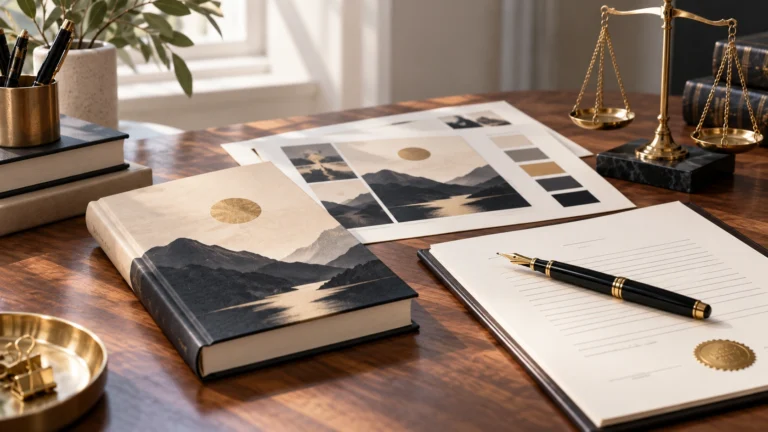
A book cover is one of the first things a potential reader notices. Before somebody reads the description or opens the first…
 October 20, 2026
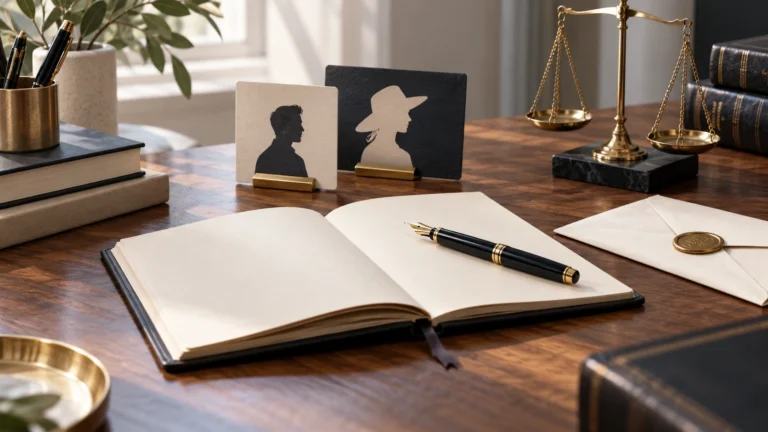
There are plenty of reasons why an author might prefer publishing under a different name. Some want privacy, others want a name…
 October 9, 2026
One thing I have never liked about social media is that having followers does not necessarily mean being able to reach those…
October 25, 2026A reading night for two sounds like a good Halloween plan to me because it leaves room for both company and quiet.…
October 25, 2026An ordinary room can become surprisingly unfamiliar after dark. During the day, I can see its edges, its furniture, and whatever is…
October 25, 2026When I imagine a gothic reading corner, I think about somewhere I would genuinely want to spend an evening. A comfortable chair,…
October 25, 2026There is a version of Halloween I like that involves very little preparation. A comfortable room, something good to read, a warm…
October 20, 2026One of the first things new authors encounter when preparing a book for publication is the ISBN. It appears on printed books,…
October 20, 2026Choosing the right book title can be surprisingly difficult. A title needs to fit the story, appeal to potential readers and remain…
October 20, 2026Finishing a manuscript can take months or years, so receiving an offer from a publisher is understandably exciting. Somebody wants to publish…
October 20, 2026A book cover is one of the first things a potential reader notices. Before somebody reads the description or opens the first…
October 20, 2026There are plenty of reasons why an author might prefer publishing under a different name. Some want privacy, others want a name…
October 9, 2026One thing I have never liked about social media is that having followers does not necessarily mean being able to reach those…
October 25, 2026A reading night for two sounds like a good Halloween plan to me because it leaves room for both company and quiet.…
October 25, 2026An ordinary room can become surprisingly unfamiliar after dark. During the day, I can see its edges, its furniture, and whatever is…
October 25, 2026When I imagine a gothic reading corner, I think about somewhere I would genuinely want to spend an evening. A comfortable chair,…
October 25, 2026There is a version of Halloween I like that involves very little preparation. A comfortable room, something good to read, a warm…
October 20, 2026One of the first things new authors encounter when preparing a book for publication is the ISBN. It appears on printed books,…
October 20, 2026Choosing the right book title can be surprisingly difficult. A title needs to fit the story, appeal to potential readers and remain…
October 20, 2026Finishing a manuscript can take months or years, so receiving an offer from a publisher is understandably exciting. Somebody wants to publish…
October 20, 2026A book cover is one of the first things a potential reader notices. Before somebody reads the description or opens the first…
October 20, 2026There are plenty of reasons why an author might prefer publishing under a different name. Some want privacy, others want a name…
October 9, 2026One thing I have never liked about social media is that having followers does not necessarily mean being able to reach those…
Add the M.V. Mitic app to your device and start reading.